
Productive
Budgets
Budgets are primarily created for you once you submit the New Budget Form using the deal that has been signed off by your client (if it was detailed and represented services and phases required).
Delivery, Client Service and Strategy teams create their own budgets for review post New Budget Form submission.
For a full walkthrough of submitting the New Budget Form, see Deal/Contracts Signed.
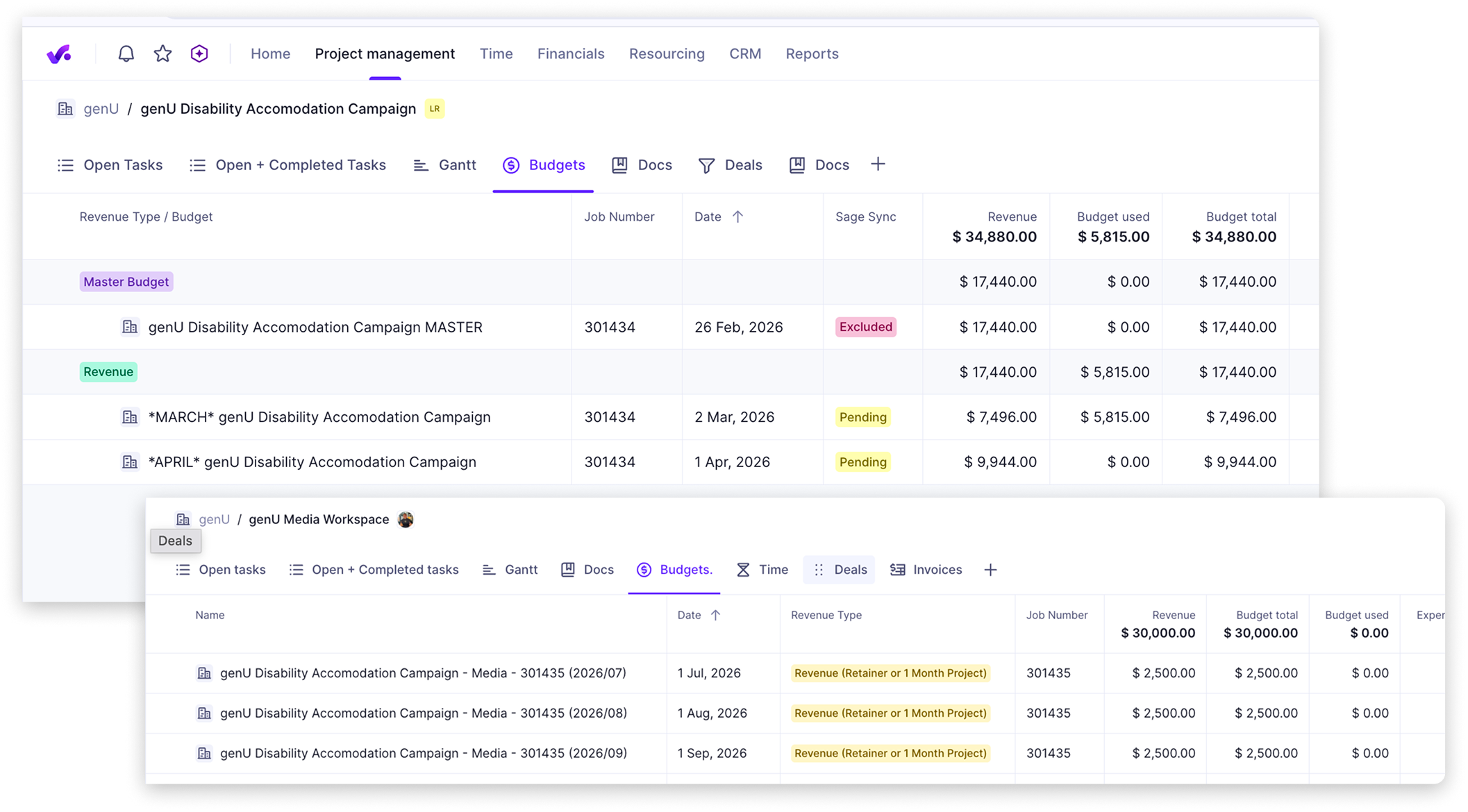
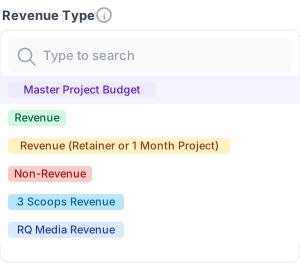
Each budget is assigned a Revenue Type that dictates how it is treated on import into our accounting tool Sage Intacct. It is important you understand these types if you are creating budgets or editing existing budgets.
Master Budgets and Revenue (Retainer or 1 month project) create Sales Orders and Invoices within Sage, where the "Revenue" budget has no purpose in Sage beyond finance being able to report departmental revenue from the service lines for certain reports within Sage.
Custom Fields
Each budget must be assigned custom fields bespoke to that budget. They are:
- Revenue Type
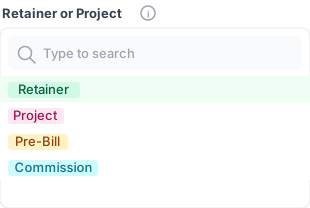
- Project Type
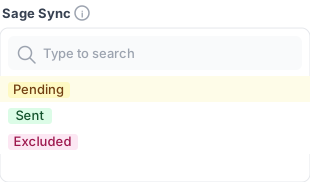
- Sage Sync
- For performance budgets: Pod and/or Media Spend
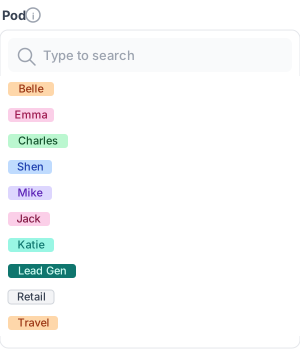
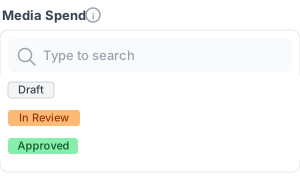
Revenue Types
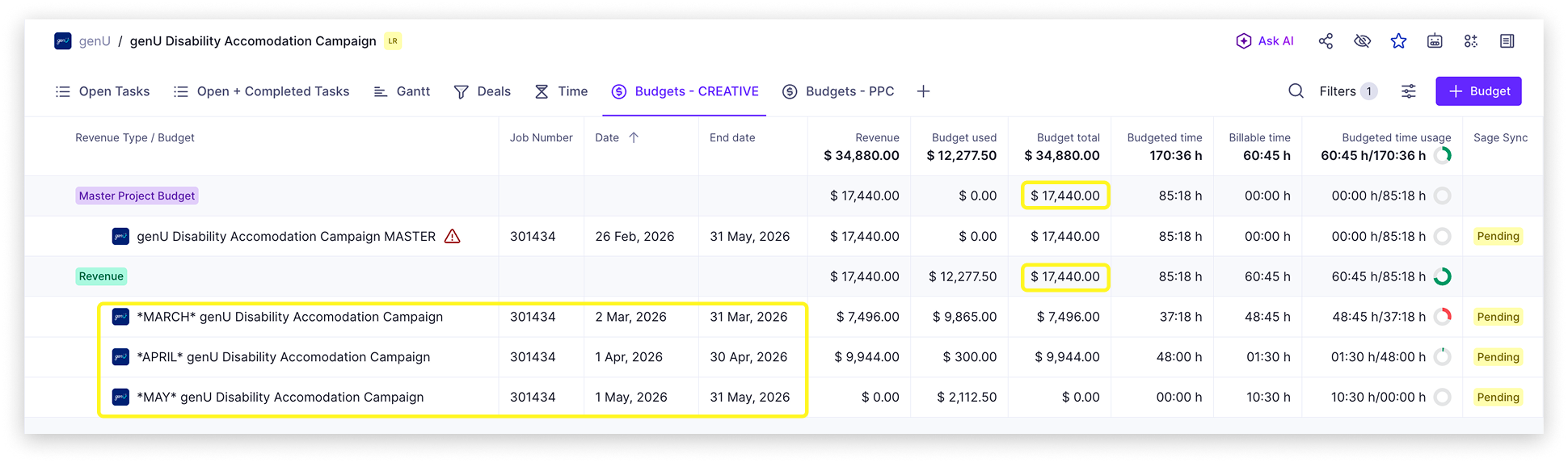
Project Budget (across multiple months)
Each project will feature a (Master) budget and 'Revenue' budgets to recognise revenue for each month.
The 'Master budget' and the sum of all 'Revenue' budgets must equal.
Master Project Budget:
- Invoicing
Revenue Budget:
- Revenue recognised each month
- Time entries
- Reflect planned deliverables and effort associated for each service
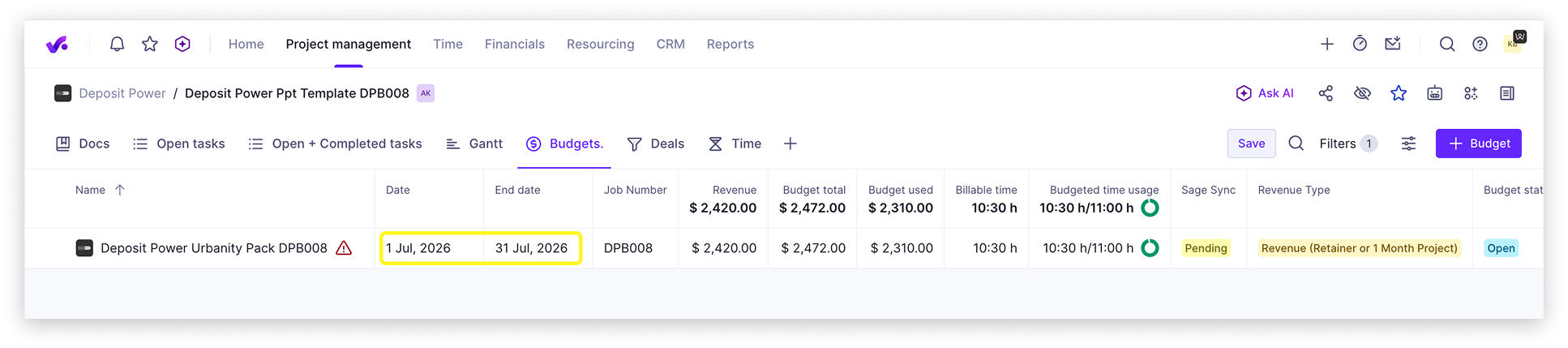
Project Budget (1 month)
Projects that are started and delivered in the same month only need 1 budget with the revenue type of:
Revenue (Retainer or 1 month project):
- Invoicing
- Revenue recognised for the month
- Time entries
- Reflect planned deliverables and effort associated for each service
Retainer Budgets
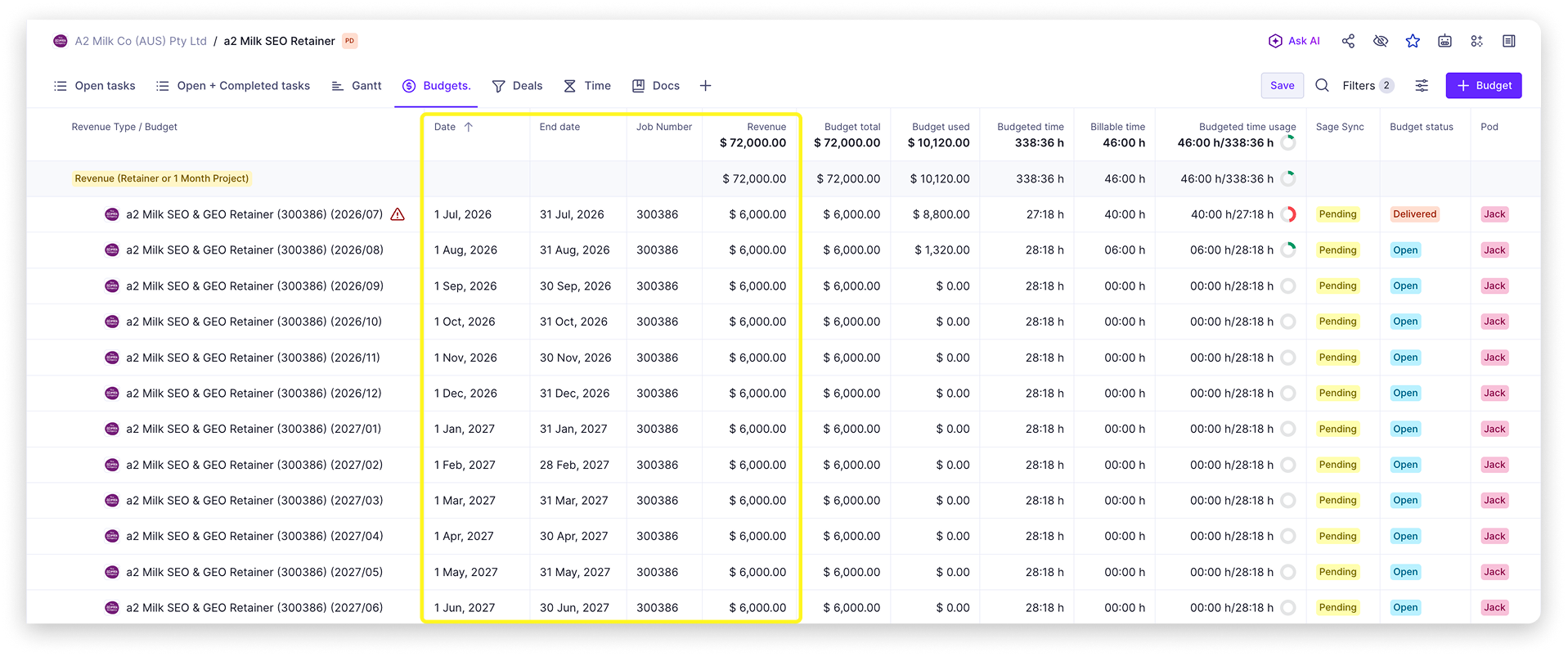
Recurring (retainer) contracts will not need a master budget but will need the revenue type:
Revenue (Retainer or 1 month project):
- Invoicing
- Revenue recognised each month
- Time entries
- Reflect agreed retainer for services per month
Third Party Costs
- Billing Type: Time and materials
- Unit: Piece
Ensure values entered are GST exclusive.
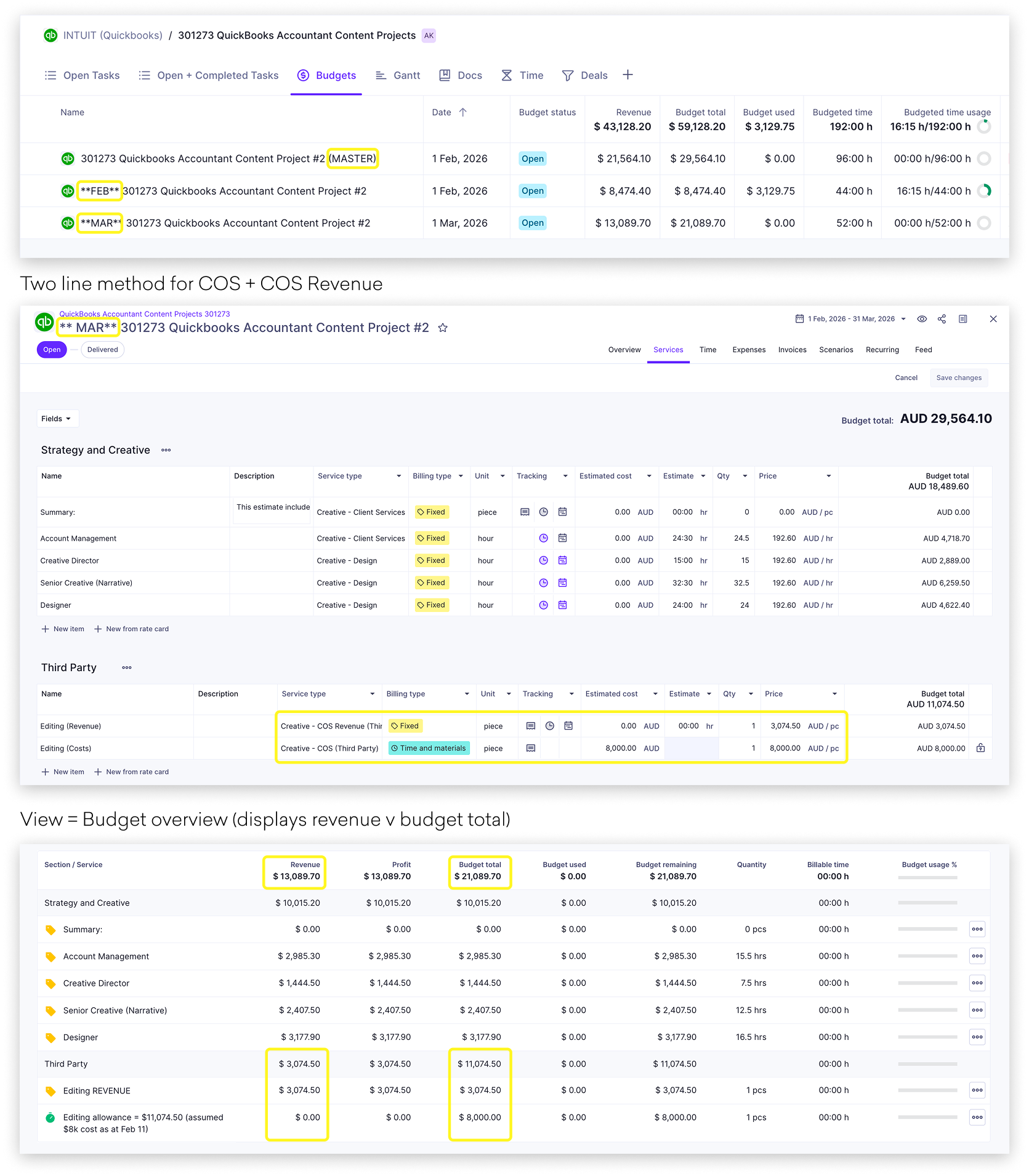
The Master budget will feature service line items for COS third party costs. The monthly budgets are usually duplicates of the master budget with quantities edited to reflect each month's revenue accurately.
The (monthly) revenue budgets will need to feature a two line model to reflect net revenue within the revenue field (see visual opposite).
Productive Bug Note: It is best to create two new service lines in the monthly budget and then delete the original third party line as it tends to hold old data and will not reflect revenue accurately.
Master Project Budget:
- 1 line for each COS
Monthly 'Revenue' Budget:
- 2 line model to reflect net revenue within the revenue field
Media Commissions
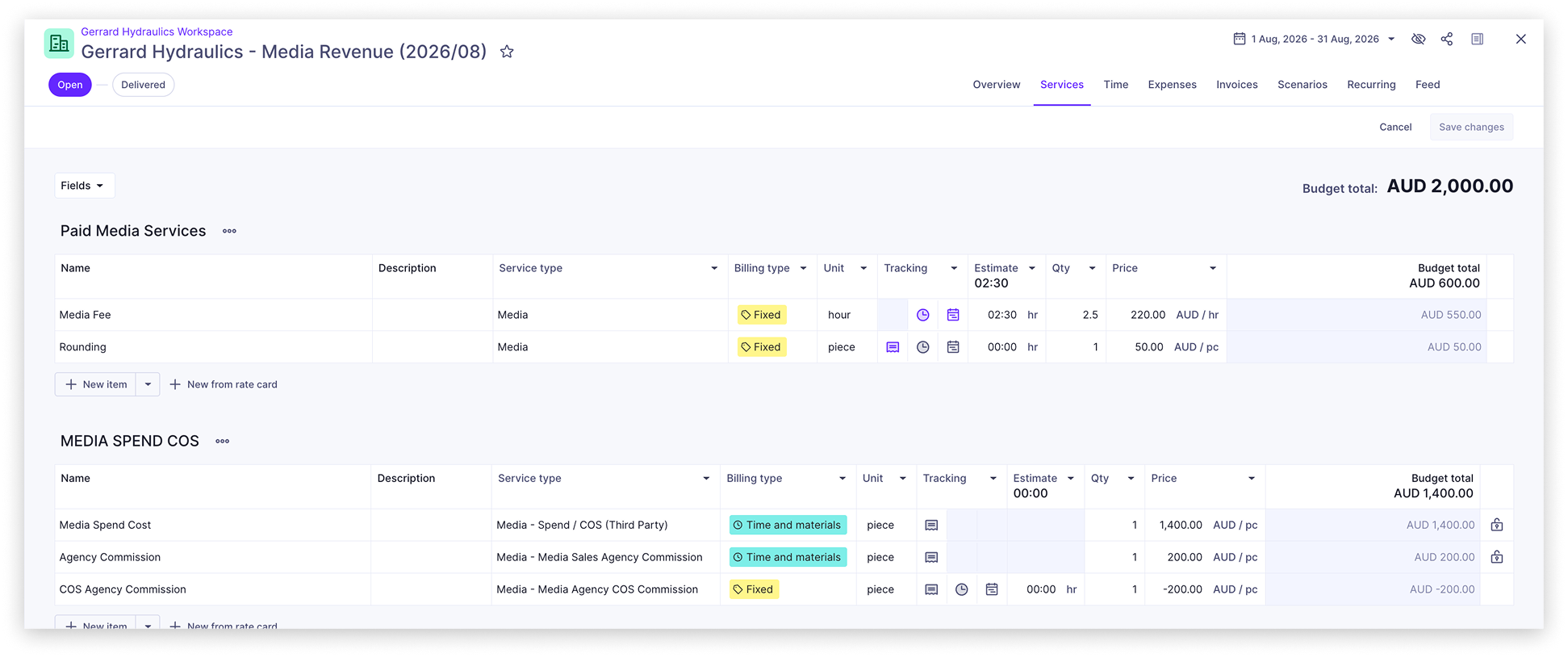
Media Spend COS may need a three-line model to accurately reflect both the media spend and costs and revenue from media commissions:
- Media Spend: the gross media spend, entered as a passthrough cost (Time and materials, per piece)
- Agency Commission: the commission charged to Jaywing from the media agency on top of the media spend (Time and materials, per piece)
- COS Agency Commission: entered as a negative value to net the commission off against the spend, reflecting the true net cost of media commission. This uses the service type Media - Media Agency COS Commission and is set to Fixed billing as it subtracts from our revenue
In the example shown, a $1,400 media spend with a $200 commission results in a COS Agency Commission of -$200, bringing the net COS total to $1,400, with the commission recognised as revenue separately.
3Scoops Budgets
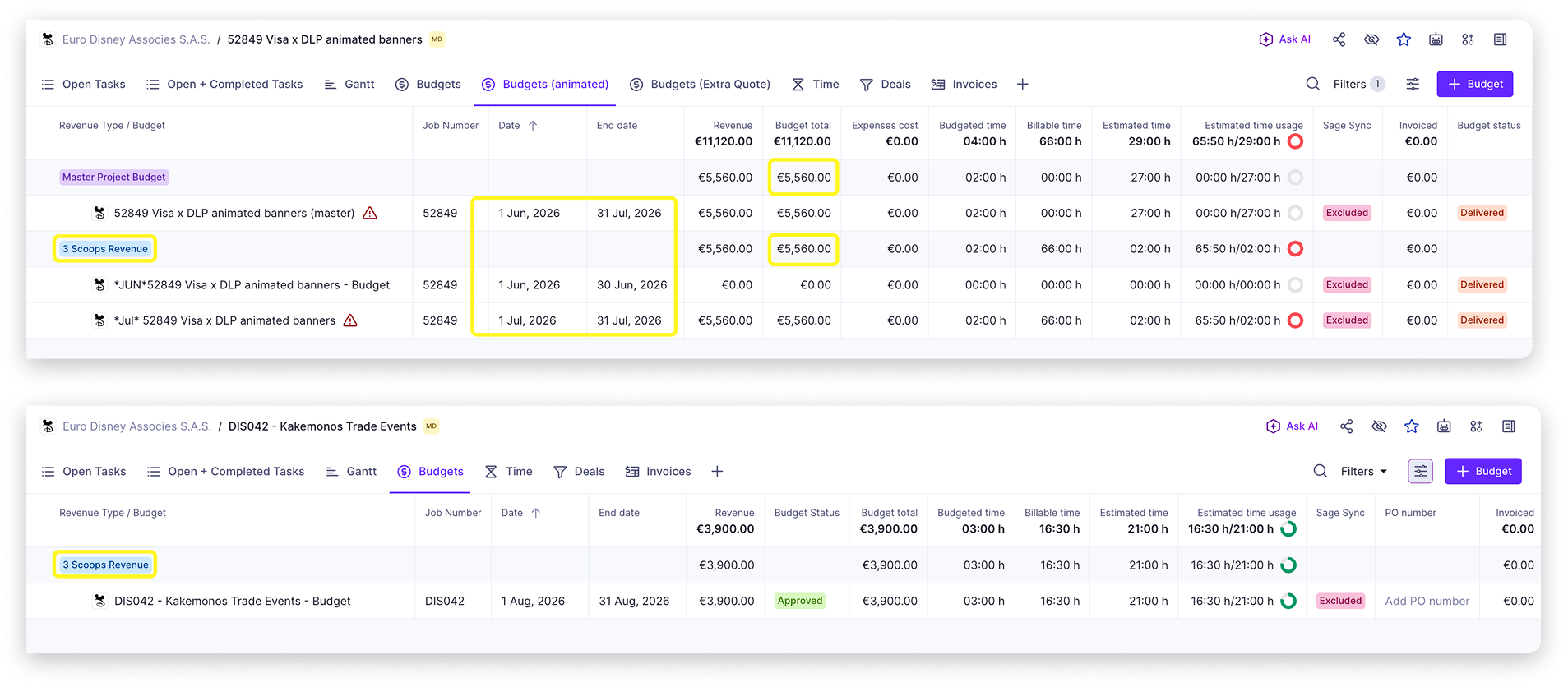
Projects that are invoiced from the subsidiary 3 Scoops are set up as per above except the revenue type equals '3 Scoops Revenue' for both 'Revenue' and 1 month projects.
Budget Tracking (Time + Resourcing)
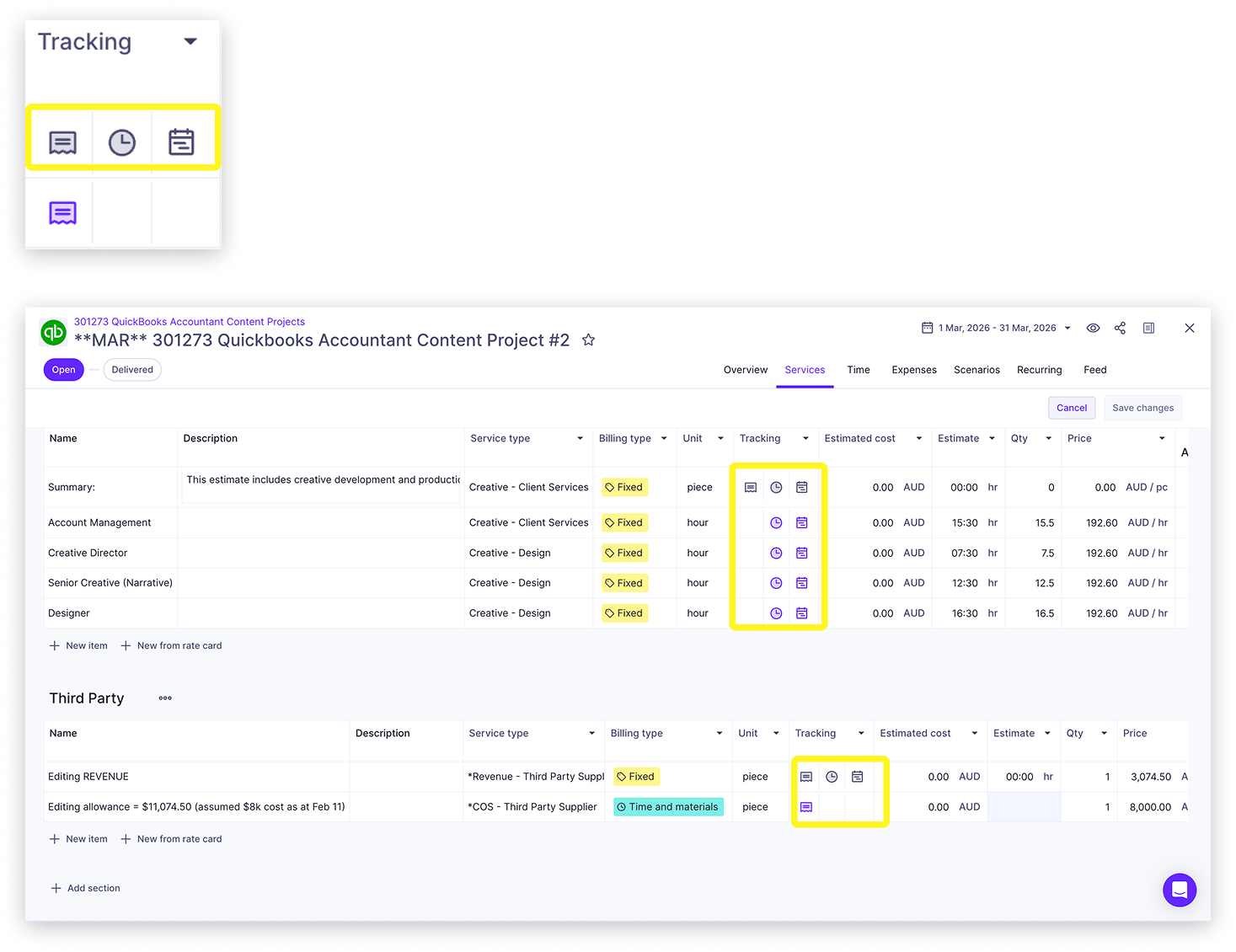
When adding services to a budget or deal, you can control how progress is tracked. You can enable or disable:
- Time tracking: logging hours worked against a service
- Booking tracking: making a service available in the Resource Planner for future bookings
Managing these options ensures that time, expenses, and bookings are accurately tracked according to your needs and to the correct budget.
We would like the budgets that are recognised as revenue to have time and booking tracking turned on.
Time Tracking
To enable or disable tracking for a service from a budget, click the icon while setting up or editing services in a budget or deal.
Tip: Click off tracking once a phase is complete to ensure no user can track time or be booked in resourcing against that service line item from the budget.
Sage Syncing
Sage Intacct is our accounting system. All budgets created in Productive sync hourly to Sage, keeping both systems in alignment.
The trigger that controls this sync is the Sage Sync custom field on each budget. There are three statuses:
- Pending: the default status when a budget is first created
- Sent: set by you or the back office once the budget has been reviewed and approved. Any subsequent updates to the budget will continue to sync to Sage automatically
- Excluded: budgets predating 1 July 2026 are excluded from syncing
Important: Do not edit a Master Budget or Retainer/1 month project budget once it has been sent to Sage and invoiced. Editing an invoiced budget causes errors in Sage and any changes will not be reflected. To account for any new revenue, whether positive or negative, a new budget must be created.