File Storage
Google Shared Drives
All client and internal work lives in Google Shared Drives, not My Drive. Shared Drives keep files accessible to the whole team and ensure work stays with the agency when people leave.
Settings
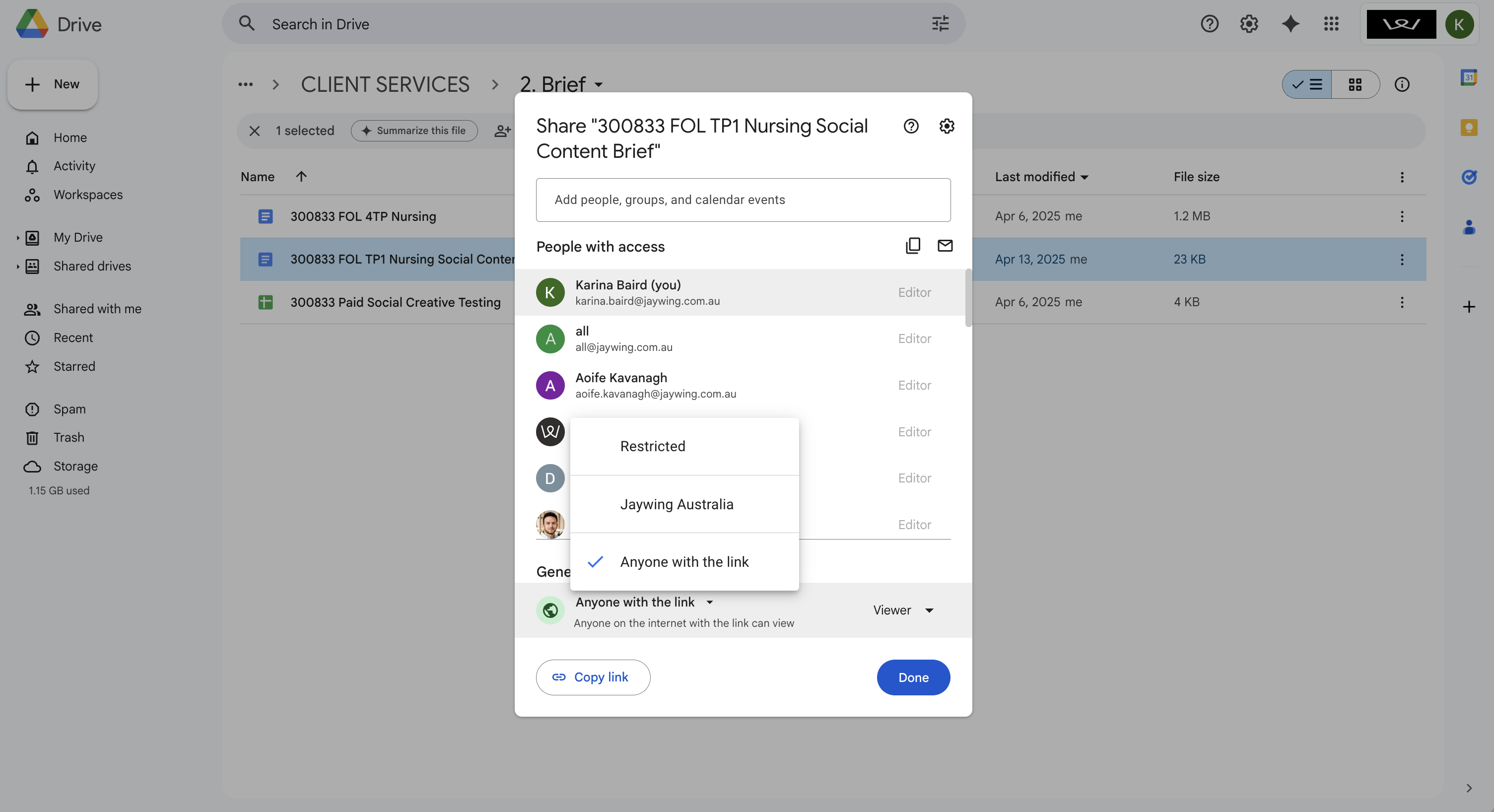
- Go to Settings (gear icon, top right)
- Scroll down to Uploads
- Tick Convert uploads to Google Docs editor format, this auto-converts any Microsoft file to Google format, preventing duplicate versions and keeping version control clean
Google Templates
Creating Files
- Navigate to the client project folder
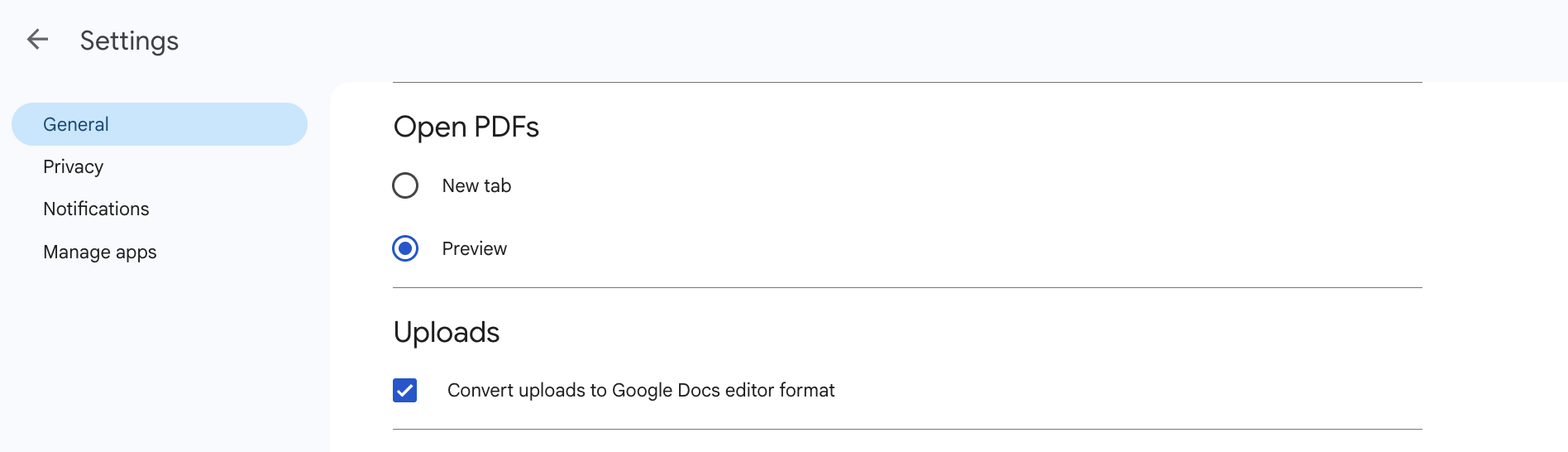
- Right-click or click + New → select an app (Docs, Sheets, Slides)
- To use a Jaywing template, click the triangle next to the app → From a template
- Name the file following our naming conventions
Uploading Files
- Navigate to the client project folder
- Right-click → File upload or Folder upload
- Or click + New and choose the upload type
- Or drag and drop directly into the folder
Sharing Files
- Locate the file
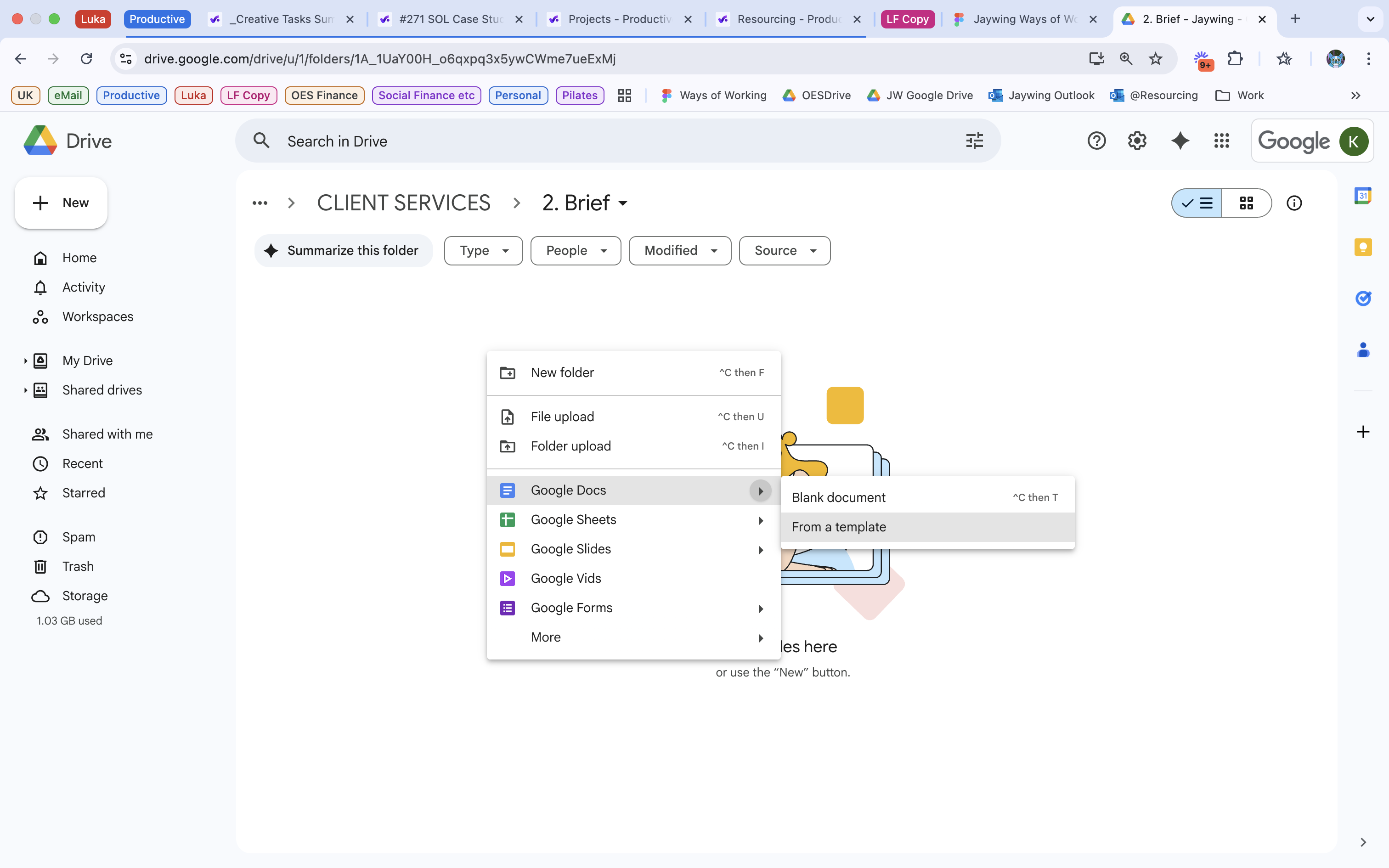
- Click Share or right-click → Share
- Change access from Restricted to Anyone with the link and set permission to Content Manager
- Click Copy link
- For multiple files, use the 00 CLIENT NAME, EXTERNAL SHARE folder at the top level of the client folder, do not share folders that may later hold files you don't want shared
- You can also share with specific individuals only, note they cannot reshare