Productive
Deal/Contracts Signed
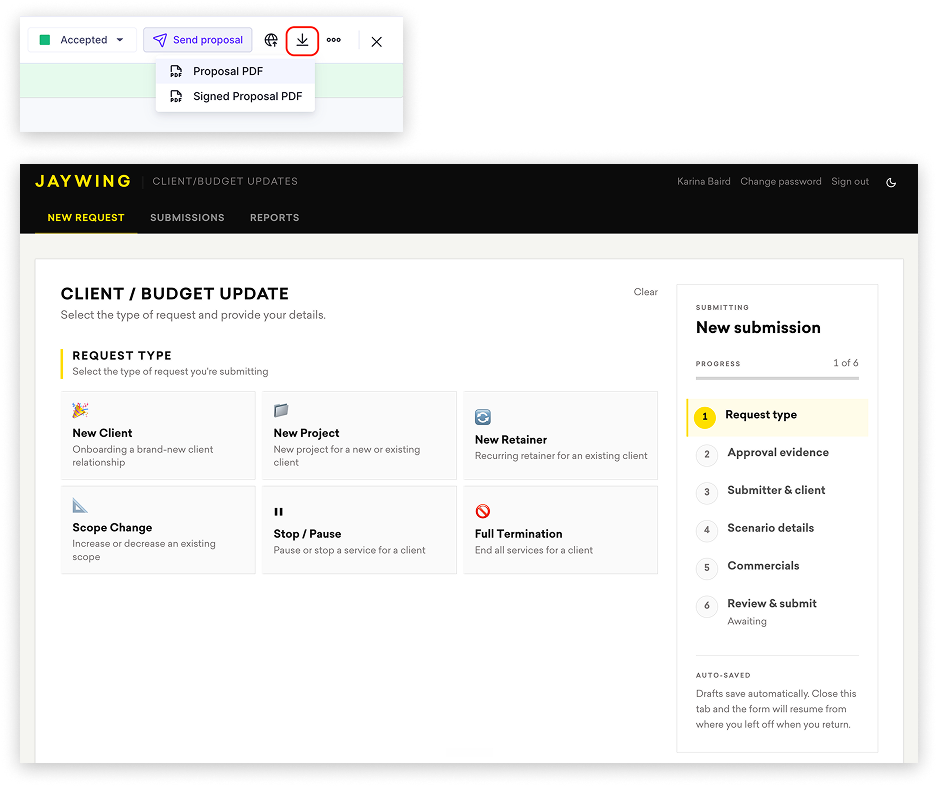
Once the client approves via eSignature or signed contract, submit the New Client / Budget updates form. Do not press WON in Productive at this point. Once the Client Contract & Budget Approvals process has been actioned, Finance will complete the project setup.
- Select the correct request type and attach the Signed Proposal (Audit Trail PDF) or the signed contract
What gets actioned once submitted
- A job number is created and advised on submission
- A Productive project and budgets are set up
- Budget and invoicing schedule is added to the FY revenue tracker (revenue and billing tabs)
- Deal is linked to the project and marked as Won
Accessing the Signed Proposal (Audit Trail PDF)
- If you shared the proposal via Productive email link, the signed PDF will be sent to you by email automatically
- You can also access it via the Proposals tab inside the deal: click the arrow icon and select Signed Proposal PDF