Productive
Deals + Contracts
When a client or new business lead requests work, prepare a formal deal in Productive for e-signature approval. If the client is new, ensure a contract agreement is signed before work begins. If only a contract is being shared, a deal must still be created so this potential work sits in our pipeline. Pipeline data is business-critical and reviewed daily.
New client setup
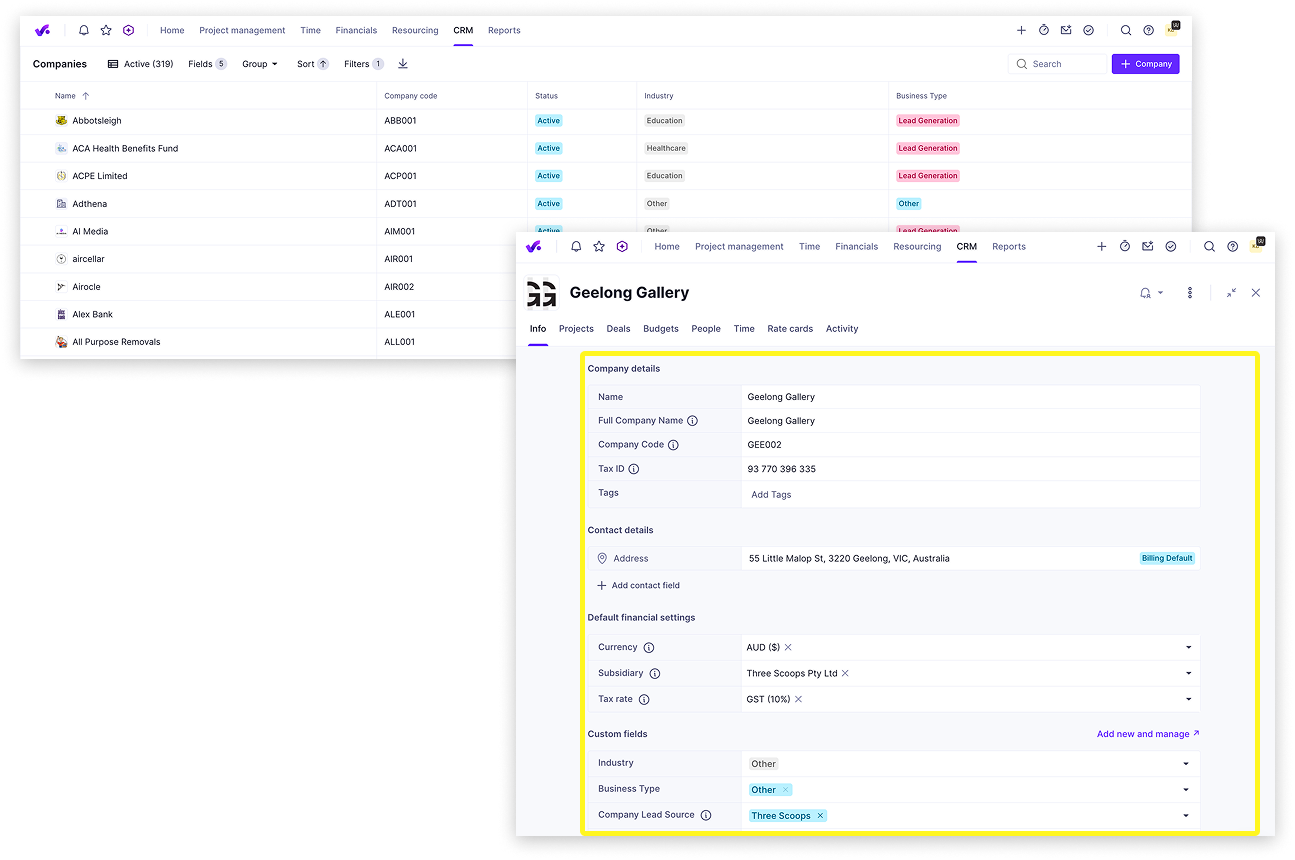
If the client does not exist in our CRM, create a new company before proceeding.
- Go to CRM > Companies > New Company
- Populate as many fields as you know. Use the ABN Lookup to verify the company's full name and ABN, but only apply results if an exact match exists
- Source credit check forms and seek signatures. See the Credit Check process
- Ensure the client signs a contract agreement at first engagement. Access them via the contract agreement folder. Select the appropriate template for the engagement and duplicate. See Client Contract & Budget Approvals for full compliance requirements
- Once signed, ensure the details in the contract for company contacts mirror the fields in Productive before submitting the new client form
Create a deal
All new work, whether a proposal, retainer, or contract, requires a deal in Productive before anything else happens.
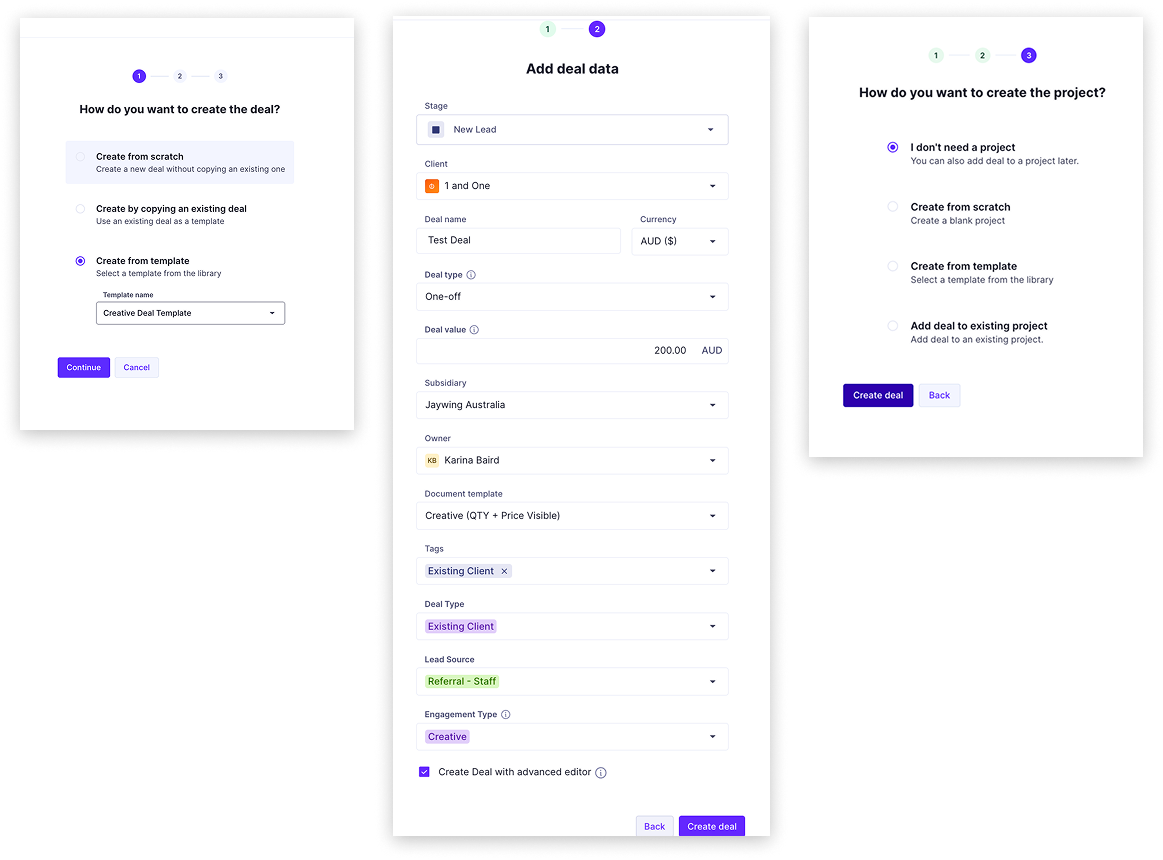
- Go to CRM > Deals and click the + Deal button (top right)
- Create from scratch or select a Template as a starting point
- Set the Stage to reflect where the deal currently sits
- Populate all key fields: Client, Deal name, Currency, Deal type, Deal value, Subsidiary, Owner, Document template, Tags, Deal Type and Lead Source
- At the "Create a project" prompt, select I don't need unless you are adding to an existing project
Deal Value Source
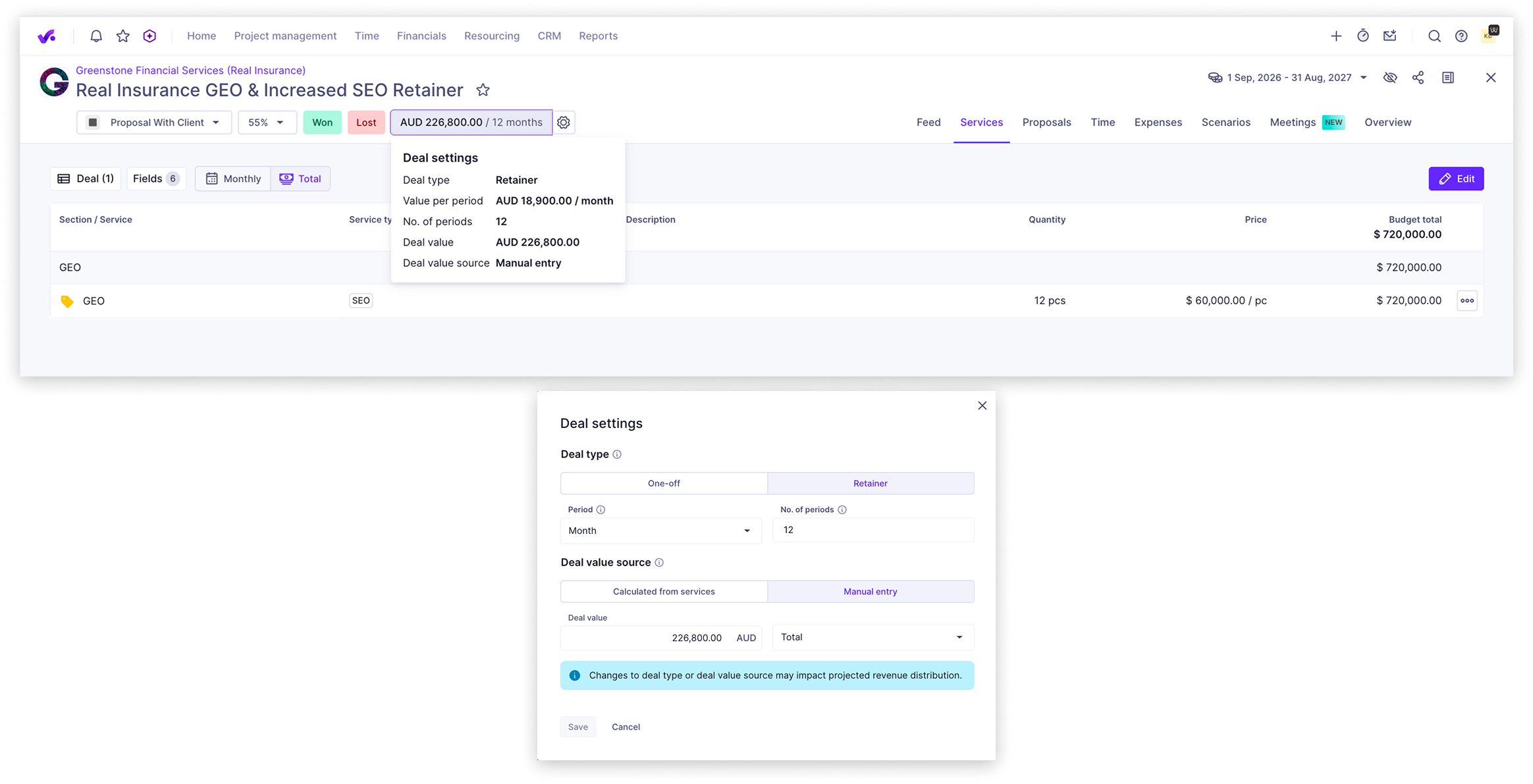
When creating a deal, owners may enter a manual deal value if the commercial amount is known before services are fully scoped, or where services are being managed outside Productive.
Where services are built in Productive, the owner must review the deal value source in Deal settings.
The owner must compare the deal value in the header with the total value of services. If the two values differ, the owner must either:
- switch the deal to Calculated from services, or
- keep Manual entry where the variance is intentional.
This is important because pipeline and forecast reporting use the selected deal value source, not automatically the service total.
The deal owner is responsible for ensuring the selected deal value source is correct.
Populate a deal
A well-populated deal is the foundation for accurate pipeline data and scoping. When a deal is won, a budget can be created directly from it, so the deal should be built to serve as the blueprint for that budget. Consider all services that will be required, not just a single line item.
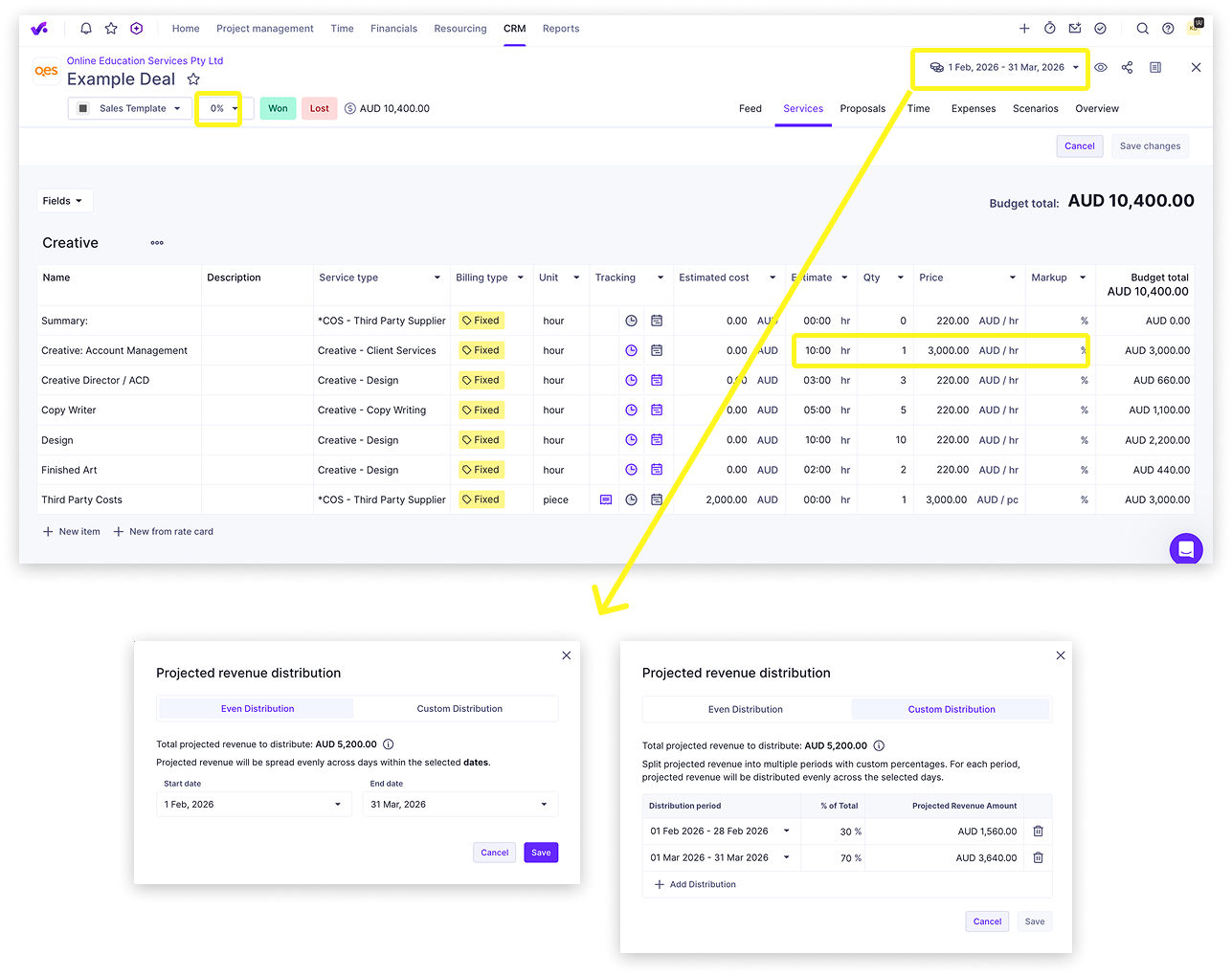
- Review and adjust the % probability to reflect the current stage accurately
- Populate service line items following the column structure shown in the example: Name, Description, Service type, Billing type, Unit, Tracking, Estimated cost, Estimate, Qty, Price, and Markup
- Determine Revenue Recognition and set the projected revenue distribution accordingly, choosing Even Distribution or Custom Distribution across the deal period
Multi-department deals
- Where a deal spans multiple departments and each department's portion is significant, duplicate the deal and create a separate version for each department so pipeline revenue is tracked accurately. Once the department deals are in place, set the client-facing deal's probability to 0% so it does not count in the pipeline
Third Party Costs
- In deals, use Billing type: Fixed for COS (Third Party) services so they are not counted as pipeline revenue
- All values entered must be exclusive of GST
Send proposal for signature
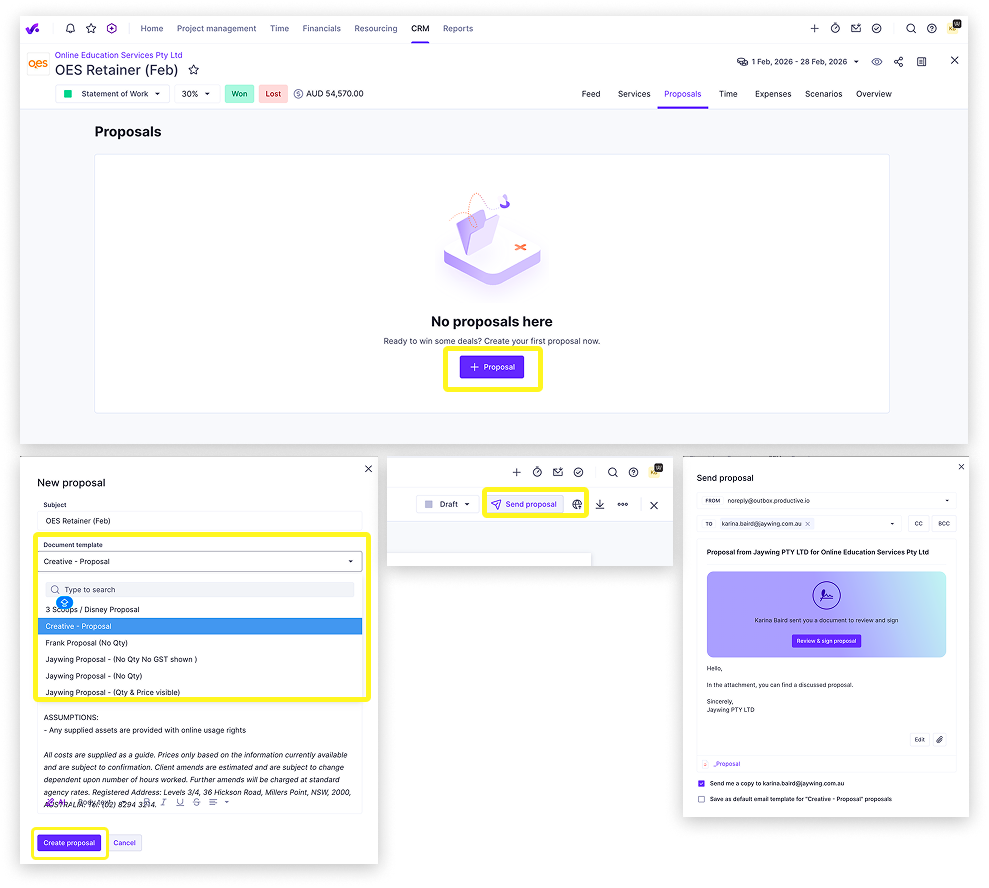
Once the deal is built, create a proposal for client approval. The proposal is the e-signature mechanism only. Client accepting a proposal does not mark the deal as Won and does not count as revenue. The New Budget Form must be submitted once approved to kick off that process.
Create a proposal
- Navigate to the Proposals tab inside the deal
- Click + Proposal, select a document template and tax type
- Review the message displayed on the proposal PDF, then click Create proposal
Option 1: Share via Productive
- Click Send Proposal to share the proposal directly via Productive
- Review the recipient details, then click Send at the base of the popup
Option 2: Share via email with link
- Click the globe icon to copy the proposal link and paste it directly into your email
Review and update your deals each week. Stale probability and revenue recognition data skews the pipeline, which is reviewed daily across the business.