Productive
Timesheets
All time is tracked in Productive. Log your hours daily against the correct project and service. Accurate timesheets are essential for budgeting, resourcing and client reporting.
Below are three methods to input time, and how to add absences for personal or annual leave.
Timesheet Time Entry Method
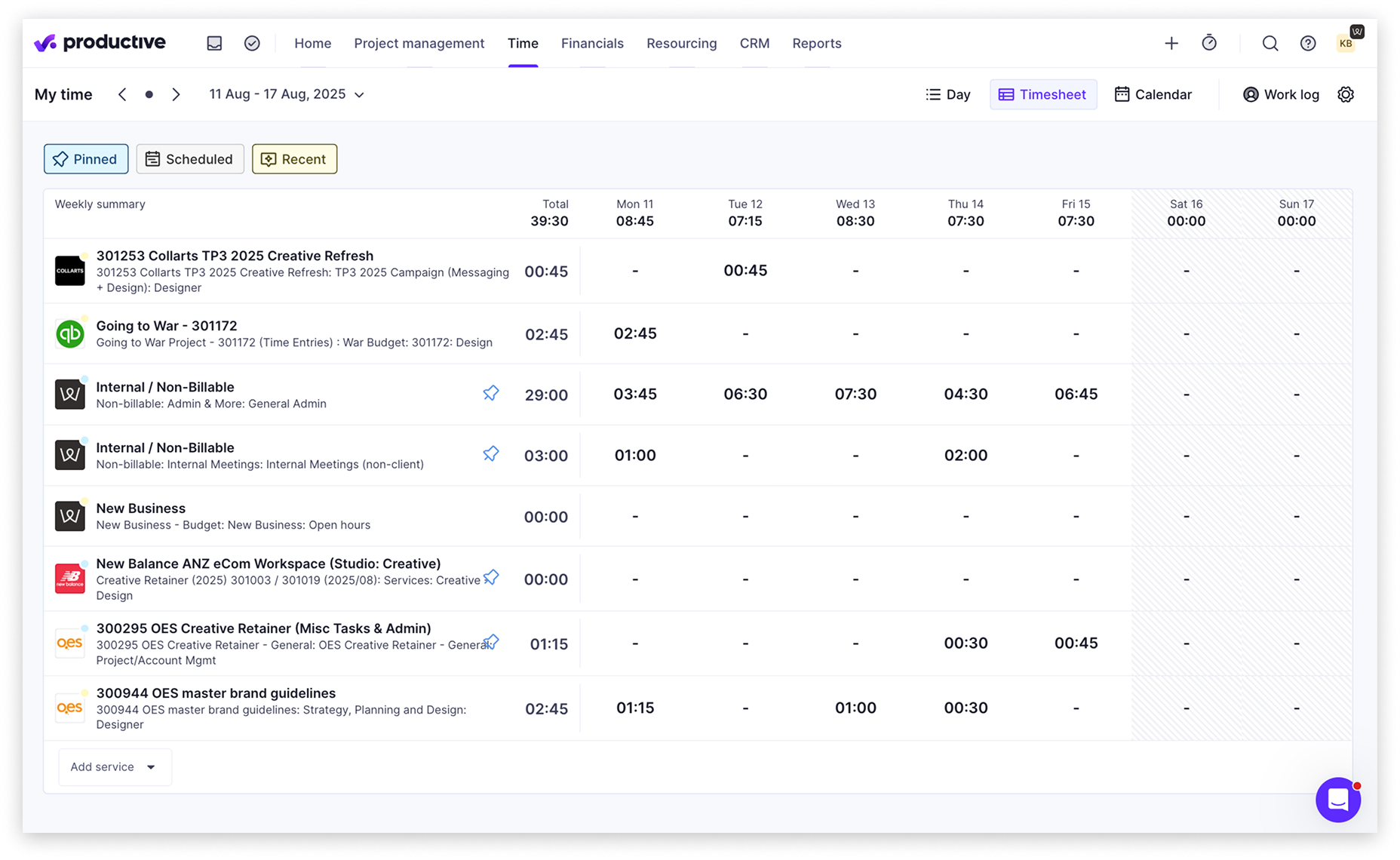
- Go to Time in the top navigation, then select My time
- Switch to Timesheet view to see a weekly summary across all projects
- Each row shows a project and service combination with hours logged per day
- The weekly total is shown at the top
- If you have repetitive budgets or tasks, press the pin icon next to the budget name to retain it in the timesheet area for the duration of the budget
- Enter time and link a task - all time entries must link to a task
- Notes are optional but welcome for complex time entries that may need explanation, as the task title usually features enough detail
Internal Non-Billable
Not all work is client-billable. When logging internal time, use the Jaywing Internal Non-Billable project/budget and select the task that most accurately reflects what you worked on.
Internal New Business
Any time spent on pitching, proposals, or business development should be logged on the Jaywing New Business project/budget and select the task that most accurately reflects what you worked on, or create a task for the specific pitch.
Task Time Entry Method
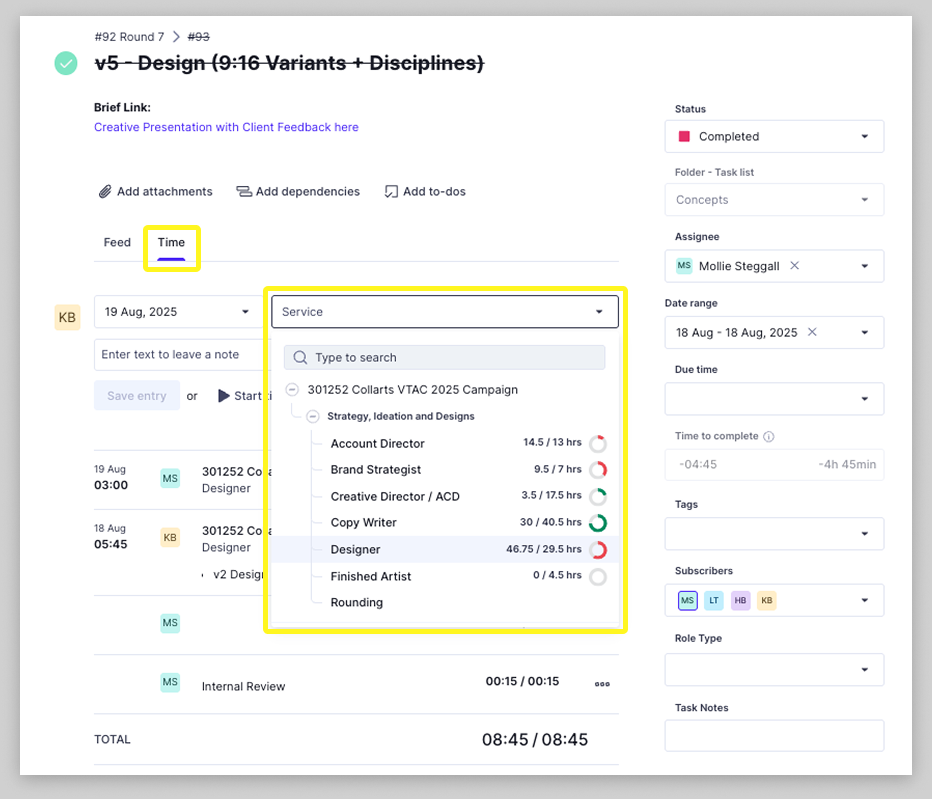
- Open any task and click the Time tab
- Use the Service dropdown to search for and select the correct project service
- Select the date, enter hours and add a description note
- Click Save entry
Timer Time Entry Method
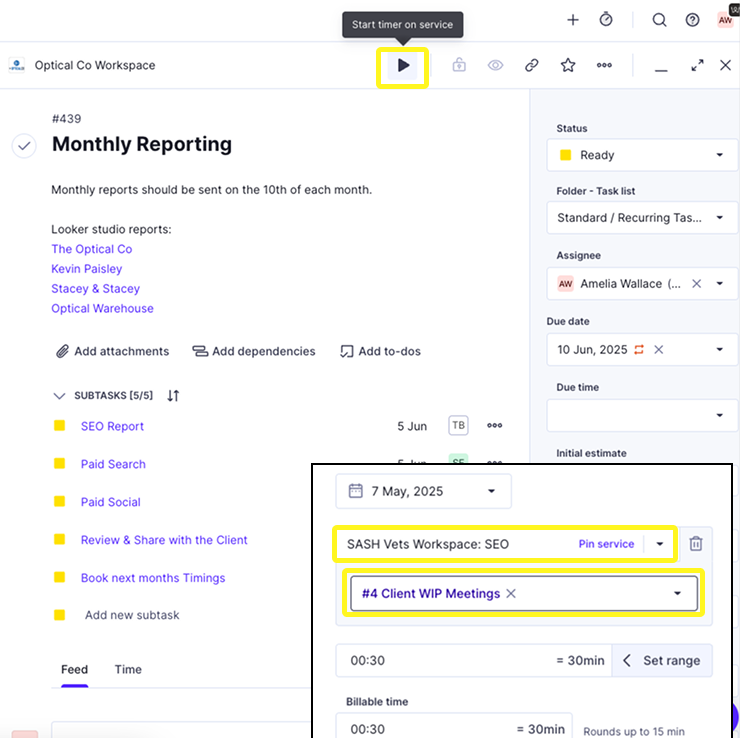
- Open a task in Productive
- Click the play button at the top of the task panel to start a timer
- The timer runs in the background while you work
- Stop it when done and Productive will prompt you to save the entry
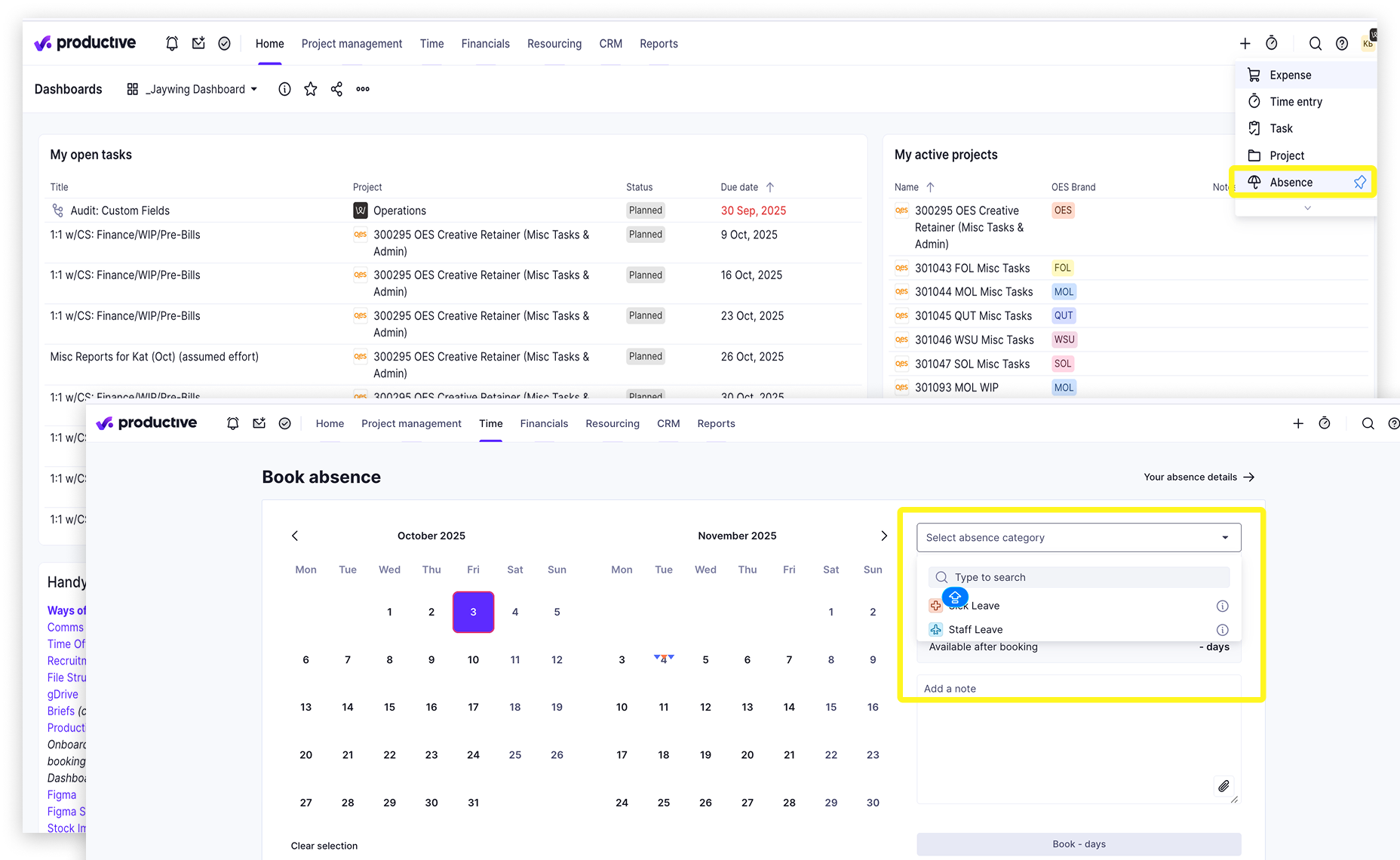
Add Absence
- All leave must be logged in Productive, including sick leave and annual leave
- From the Productive Home dashboard, click the + button in the top right
- Select Absence from the dropdown
- Select your dates using the calendar
- Choose an absence category - Sick Leave or Staff Leave
- Add a note if relevant and click Book