
Figma
Figma Slides
When creating and managing Figma slides, consistent naming, proper filing, and the right permissions ensure the team can collaborate without friction.
Creating a new Figma slide
New Figma slides must be named following our conventions and moved into the correct project folder. By default, any new slide will be stored in your drafts with limited access to the wider team if created outside of the desired client folder.
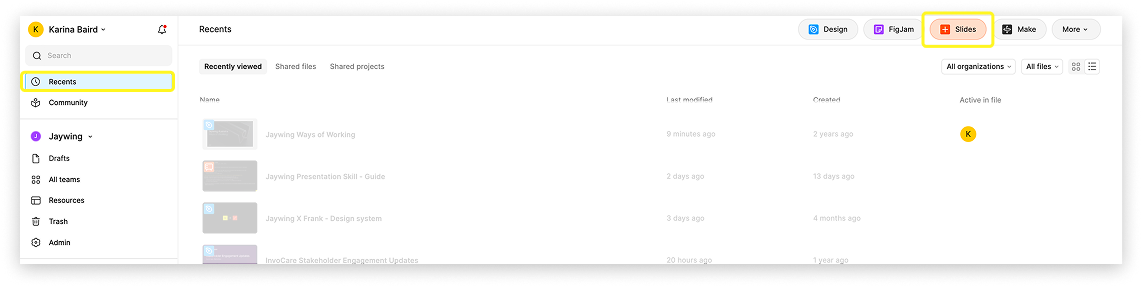
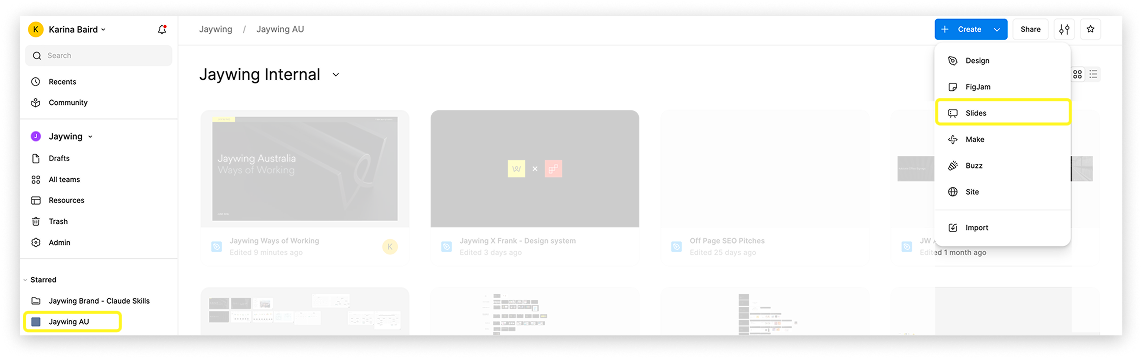
Create new slide design file
- Navigate to the recents tab or team folder
- Select + Slides or Create Slide
- Select Jaywing Slides Template - April 2025
Rename file
- Click on the field in the top left corner
- Name the file following our naming conventions

Filing a new Figma slide
Move your slide file into the correct project folder as soon as it's created. This keeps it accessible to the wider team and ready to share externally when needed.
Some clients have their own dedicated team space in Figma, while most other client work lives within Jaywing AU.
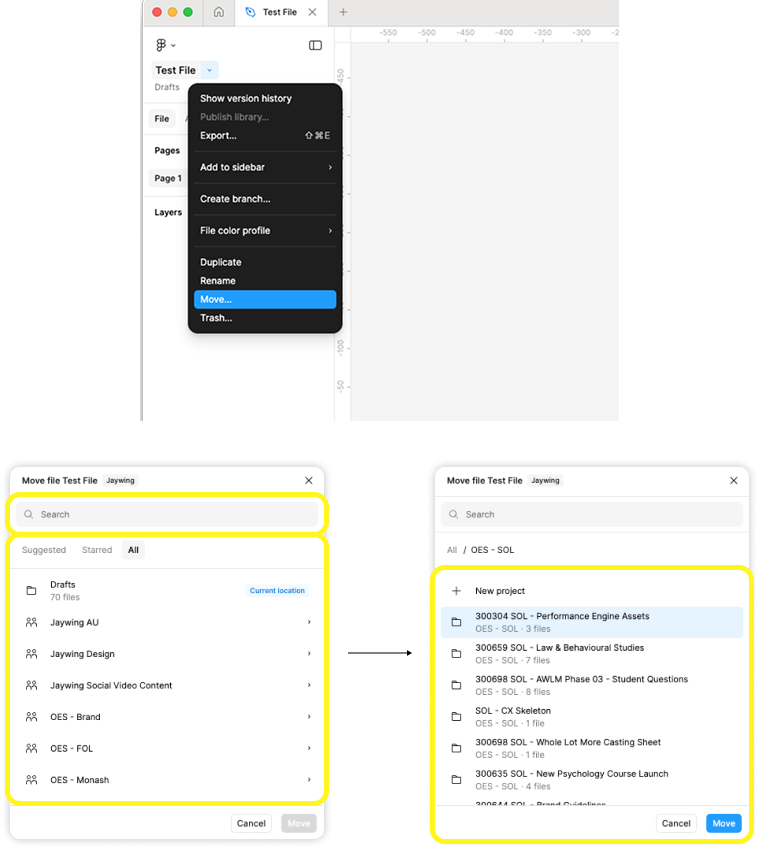
To move a file
- Click the dropdown next to the file name
- Select Move... from the dropdown
Select project/folder
- Search for the folder name, or select from the list
- Click Move
Note: Remember to file in the correct job folder with the correct job number.
Amending notifications
By default, once you edit a Figma slide you will automatically receive notifications of ALL comments on that document.
We advise that you change this preference to only receive notifications when you are directly tagged or replied to.
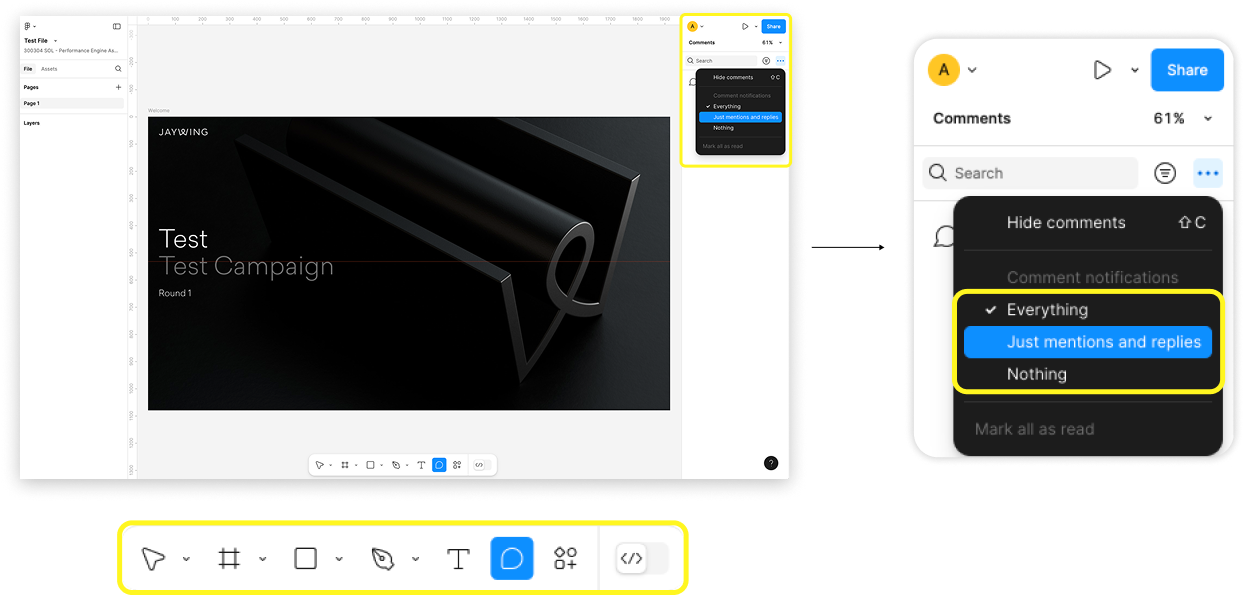
To change notifications
- Navigate to the base panel and select the Comment icon
- In the Comments panel (top right), select the three dots icon
- Select Just mentions and replies
Sharing externally
Audience links are shared with clients to review Figma slide presentations. Unlike Figma design files, where prototypes are shared, slides are distributed via a public audience link.
To share externally
- Click the Play icon
- Click Present
- Click Share
- Under can view, edit to Anyone
- Click Copy Audience Link
Share the link externally. Check in incognito mode to ensure the link does not ask for Figma login.